Convert PDFs to CSV with the columns you actually need.
Use Messy2Sheet as a PDF to CSV converter when a PDF has tables, rows, or fields that need cleanup. Upload a PDF, scan, screenshot, or pasted PDF text, choose the columns you need, then preview the result before exporting.
Upload a PDF, scan, screenshot, or paste PDF text. The CSV instructions are already filled in.
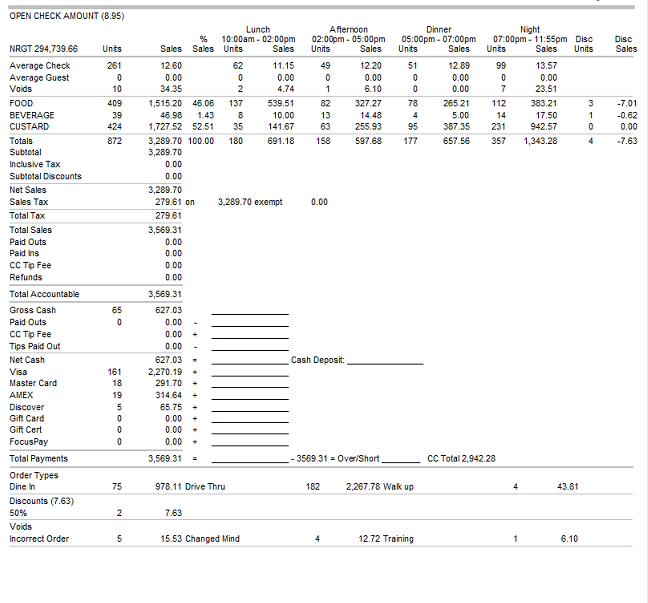
Sample PDF report to rows
A public POS report with revenue categories, dayparts, tenders, voids, tips, taxes, and reconciliation rows.
What a useful PDF to CSV conversion needs.
A basic converter only changes file format. Messy2Sheet focuses on the columns, rows, and cleanup rules that make the CSV useful.
Choose the CSV fields before the run starts
Ask for the fields your import or review process needs: dates, names, SKUs, quantities, amounts, categories, notes, or source page references.
Turn PDF layout into usable rows
A useful conversion keeps row order, section names, wrapped labels, repeated headers, and unclear cells visible instead of flattening everything into copied text.
Preview before the file goes into another system
Open the source beside the generated sheet and check rows before downloading the CSV or switching to an Excel workbook.
Use it when the file is messy, not unreadable.
Messy2Sheet is built for awkward business documents. If important text is missing, blocked, or too blurry to read, keep a quick manual review in the loop.
Works best with
- Readable PDFs, scans, screenshots, or copied PDF text.
- Tables, reports, price lists, statements, forms, or other row-based files.
- Cases where you already know the CSV columns you want.
- Repeat PDF layouts that can become a saved workflow.
Needs a manual check when
- The PDF is a low-resolution scan or angled photo.
- Rows are cut off, hidden, merged, or continued without labels.
- Important values only appear in handwriting or stamps.
- The file mixes several unrelated layouts in one upload.
Start with a template. Save what works.
For repeat PDFs, start with the CSV columns your import needs, review one result, then save the cleanup rules for the next file.
CSV output layout
Use a table template when the target CSV needs fixed columns every time.
Saved PDF cleanup workflow
Save the instructions that clean up repeated headers, wrapped labels, merged cells, and totals.
- 01Keep row order and section labels from the PDF.
- 02Split merged text into the custom columns you requested.
- 03Flag unreadable cells instead of guessing.
From PDF page to import-ready CSV rows.
Columns before conversion
Tell Messy2Sheet what the CSV should contain before it reads the file.
Rows stay reviewable
Keep table rows, section labels, totals, and uncertain cells visible for checking.
CSV or workbook output
Start with CSV for import, or switch to Excel when you need tabs and review notes.
More ways to turn documents into Excel.
If this is not the file on your desk today, start with a nearby workflow and adjust the columns before running it.
Bank statement converter
For bank pages, statements, deposits, withdrawals, balances, and fee sections.
ConvertInvoice automation
For invoice headers, supplier fields, taxes, totals, and itemized line rows.
AutomatePurchase order automation
For PO packets, quote options, approvals, shipping terms, freight, and totals.
ProcessMerge Excel files
For combining Excel or CSV files into one workbook, one sheet, or separate tabs.
MergeExcel formula generator
For creating formulas, checks, totals, lookups, and workbook calculations from plain English.
GenerateQuestions before you upload?
Can it convert scanned PDFs to CSV?+
Yes, when the scan is readable. Clear scans and screenshots work better than blurry, cropped, or low-contrast pages.
Can I choose the CSV columns?+
Yes. Describe the columns you want before starting, such as date, vendor, item, SKU, amount, category, notes, or fields from the source.
Can I export Excel instead of CSV?+
Yes. CSV is the default for this page, but you can create a workbook when review or multiple sheets are more useful.
Does it keep rows from multi-page PDFs?+
Yes, if the rows and page order are readable. You can ask it to keep page numbers, section names, repeated headers, or notes for manual review.
When should I manually check the result?+
Check the result when pages are skewed, tables continue across pages, text is cut off, or totals and row labels are hard to read.
Try it on one real file.
Upload the document, keep or edit the template instructions, and check the workbook before you download it.